Basic Settings
Within the Basic Settings tab you can determine what features are available within the text editor managers (such as the document manager and the image manager), control which users have access to those managers and make a few other configuration choices.
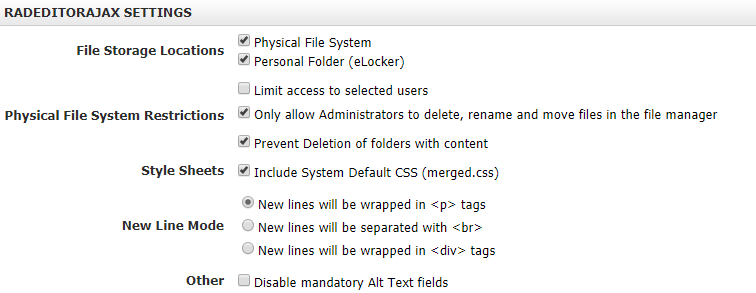
File Storage Locations: You can choose whether users are able to access the Physical File System, their Personal Folder (elocker) or both. The Physical File System is the shared collaborative folders that are available to all editors by default.
Physical File System Restrictions: If you decide that you do not want some editors to access the shared collaborative folders, you can choose to Limit access to selected users. This can be quite useful if your users have accessing to their own personal folders.
You also have the option to Only allow Administrators to delete, rename and move files in the file manager. If this option is checked then administrators will be the only users that can delete, rename or move any files or folders found within the shared collaborative area.
If you check the Prevent Deletion of folders with content option, users will not be able to delete a folder without first deleting all the files within the folder.
Style Sheets: If Include System Default CSS (merged.css) is enabled, the editor will automatically incorporate the merged.css style sheet entries into the Apply CSS drop-down that appears within the editor.
New Line Mode: This setting allows you to choose what happens when you hit enter in the editor. You can choose between the following options:
- New lines will be wrapped in <p> tags: When you hit enter on your keyboard, the current paragraph will be closed and your cursor will move to the start of a new paragraph.
- New lines will be separated with <br>: When you hit enter on your keyboard, a line break will be added and your cursor will move to a new line.
- New lines will be wrapped in <div> tags: When you hit enter on your keyboard, the current div will be closed and your cursor will be moved to the start of a new div.
- Note: See the section on differences between line breaks, paragraphs and divs for more information.
Other: If the option Disable mandatory Alt Text fields is enabled then users will no longer be required to fill in a tooltip or alt text when inserting images, hyperlinks, etc. Accessibility rules may require that your users use alt text when inserting images and hyperlinks so take that into consideration that before deciding to disable the mandatory alt text fields.
To save any changes, click Update Settings.
Image Optimization
The Image Optimization section helps to ensure that files you upload are not larger than they need to be to display on the site. This can help keep the size of your pages down and ensure that users are able to load pages on your site quickly.
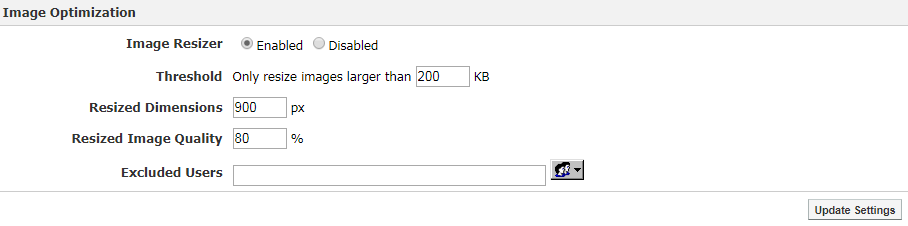
You can set the optimizer to Enabled or Disabled.
The Threshold allows you to determine how big images have to be before they will be resized. If the size of the file is less than the threshold size, then the image will be optimized.
The Resized Dimensions allows you to determine the maximum height or width for the resized image (the larger of the two will be set to the resized dimension).
The Resized Image Quality determines how much the quality will be reduced. By default this will be set to 80%. In most cases, this will reduce the file size without having any notable impact on the visual quality of the image on your site.
If you want some users to be exempted from the resize, you can click on the icon for Excluded Users. Select the users that you want to exclude, click Add and click OK.
To save any changes, click Update Settings.